


Introduction
Staying organized can become surprisingly difficult when you have tasks, ideas, notes, projects, plans, and reminders coming from different directions. One app may handle tasks, another may store notes, and another may be used for project planning. Before long, you can spend almost as much time managing your productivity tools as you do actually getting things done.
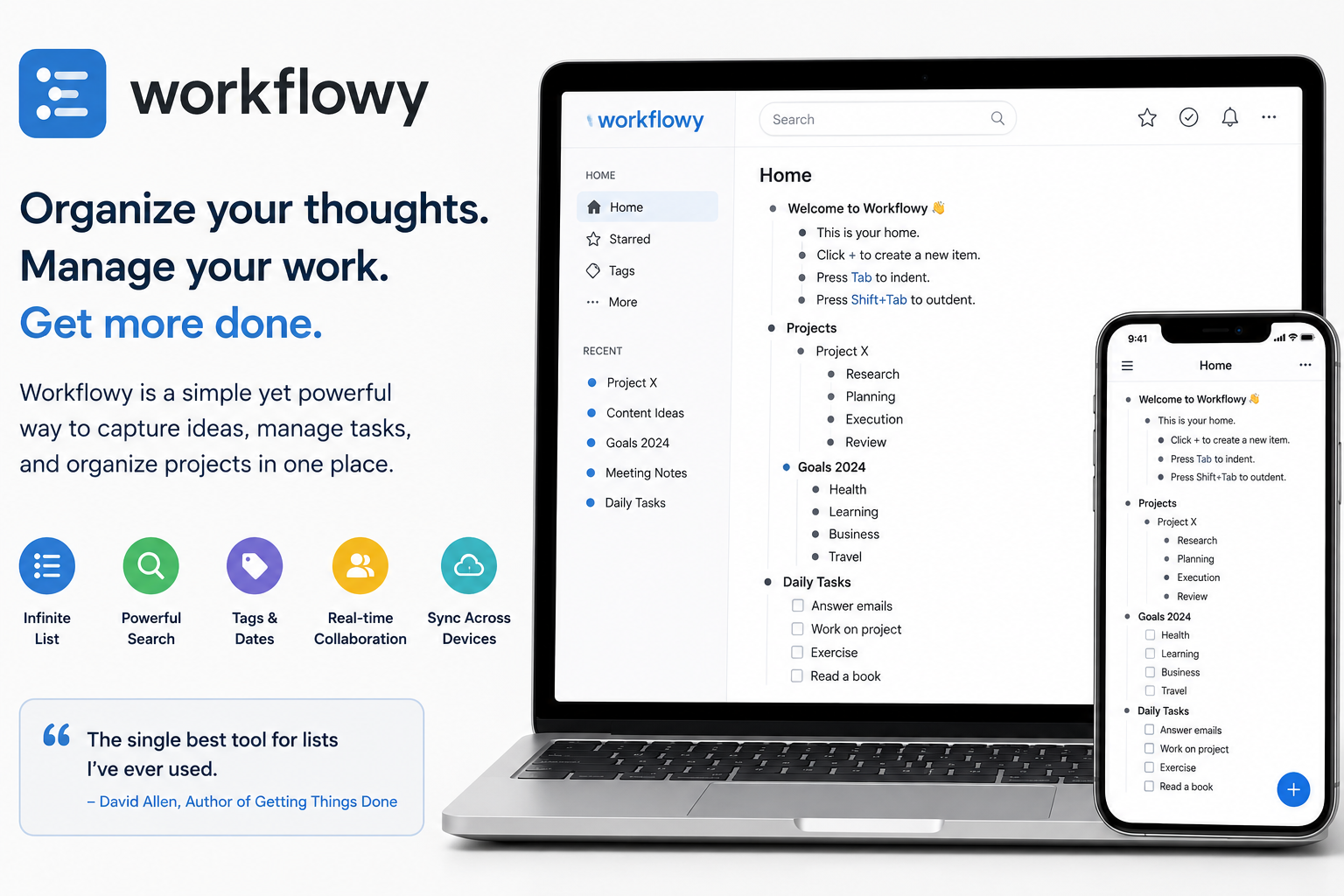
Workflowy takes a different approach. Instead of separating everything into different applications, it provides a flexible, outline-based workspace where you can keep tasks, notes, ideas, projects, and other information together.It describes itself as a single, infinite document rather than a collection of separate files and folders.
The simplicity is what makes Workflowy interesting. You can start with a basic bullet point and gradually build a detailed structure underneath it. Whether you are planning a project, writing an article, organizing research, or keeping track of personal tasks, the same basic system can adapt to your needs.
What Is Workflowy?
Workflowy is an organization and productivity tool built around nested lists. Rather than forcing users to decide exactly which folder or document something belongs in before writing it down, It lets you capture information and organize it naturally using indentation and hierarchy.
The basic idea is easy to understand. You create a bullet, press Enter to create another item, and use Tab to move an item underneath the previous one. This creates a parent-and-child structure that can become as simple or as detailed as you need.
For example, you might create a main item called “Website Project.” Under it, you could add “Content,” “Design,” “SEO,” and “Development.” Under SEO, you could create additional items for keyword research, technical improvements, internal linking, and content optimization. This makes it useful for both simple lists and complicated projects.
How Workflowy Organizes Information
One of Workflowy’s most important concepts is nesting. Instead of relying entirely on folders, you can build relationships between pieces of information by placing one item underneath another. This creates an outline that can expand without forcing you to create dozens of separate documents.
The advantage is flexibility. A single bullet can represent something extremely simple, such as “Buy groceries,” or something much larger, such as “Launch a new website.” The larger item can contain dozens of smaller tasks, notes, research points, and ideas.
Workflowy also lets you zoom into an individual bullet. When you zoom into a project, the surrounding information disappears from view, allowing you to focus on that particular branch. You can then move back up through the breadcrumb navigation when you want to see the bigger picture again.
Workflowy for Personal Productivity
Personal productivity is one of the most straightforward ways to use Workflowy. You can create sections for daily tasks, personal goals, shopping, travel plans, ideas, routines, and anything else you want to remember.
A simple daily setup could include a “Today” section with tasks underneath it. You might add work responsibilities, errands, calls, appointments, and personal activities. Once something is finished, you can mark it complete and continue with the next item.
The advantage is that your notes and tasks can live together. You might write a task such as “Call client” and place useful information beneath it, such as the reason for the call, questions to ask, or information you need to discuss. This keeps the supporting context close to the task itself.
Workflowy for Work and Project Management
Workflowy can also be useful for managing professional projects. Instead of creating a separate document for every stage of a project, you can create one central project node and organize everything underneath it.
For example, a marketing campaign could contain sections for research, content, design, publishing, promotion, and reporting. Each section could then be divided into smaller actions. This hierarchical approach can make complicated projects easier to understand.
Teams can also share branches of a Workflowy document with other people. According to Workflowy’s documentation, shared branches can be used for project planning, meeting notes, action items, and team wikis, with sharing permissions available at different levels.
Using Workflowy for Notes and Research
Workflowy is not limited to checklists. It can also work as a flexible note-taking and research environment. This is especially useful when your research contains many connected ideas that need to be organized gradually.
Suppose you are researching a new business topic. You could create a main research item and then add sections for statistics, sources, competitors, customer questions, content ideas, and conclusions. Each section can contain deeper levels of information without requiring separate files.
Every Workflowy node also has a note field where you can keep supporting information without adding everything directly into the visible outline. This makes it possible to keep an outline clean while still storing additional context.
Tags and Dates in Workflowy
As your Workflowy document grows, finding specific information becomes increasingly important. Tags can help solve this problem. You can add tags such as #urgent, #client, or #content to different items and then use those tags to filter related information across your document.
Dates provide another layer of organization. You can attach dates to tasks and use natural-language searches such as “today,” “tomorrow,” or “this week” to find relevant items. This can turn a basic outline into a lightweight task-management system.
The combination of tags and dates is particularly useful when your information does not fit neatly into one location. Instead of copying the same task into several lists, you can keep it in one place and use tags or dates to surface it when necessary.
Workflowy’s Search Features
Search is extremely important when you have a large amount of information in one document. Workflowy’s search system is designed to find information across your account and allows users to filter results using keywords, tags, dates, formats, and other properties.
For example, you can search for a specific project name, filter tasks using a tag, or look for items associated with a particular date. Advanced operators can also help narrow results. This means you do not necessarily need to remember exactly where something was stored.
Workflowy also allows searches to be saved as shortcuts. A saved search can act like a dynamic dashboard because the results change as your document changes. For example, you could save a search for open tasks or items tagged with a particular priority.
Workflowy and AI
Workflowy has expanded beyond traditional outlining with AI features. Its AI tools can interact with information stored inside your Workflowy notes, allowing you to ask questions, discover connections, and process or transform information.
This can be useful when your notes become extensive. Instead of manually searching through everything, you can ask questions about your stored information and use AI to help surface relevant details.
AI can also be useful for brainstorming and writing. For example, someone working on a content project could keep research, ideas, outlines, and notes inside Workflowy and then use its AI features to help process that material. The important point is that the AI functionality works alongside the information already stored in your workspace.
Recent Workflowy Features
Workflowy continues to add features while maintaining its outline-based foundation. One notable 2026 update introduced lightweight tables. A Workflowy node can now be turned into a table, with child nodes becoming rows and their children becoming cells. Tables can be used for comparisons, trackers, plans, and small databases.
Another recent addition is the ability to email thoughts, notes, or links directly into Workflowy. This provides a quick way to capture information without opening the full application. Workflowy also added improvements to mobile themes and calendar-related functionality in its 2026 updates.
Workflowy has also introduced cross-tab drag-and-drop improvements and numbered lists. These changes may seem small individually, but they can make a noticeable difference for people who use the platform heavily for organizing large amounts of information.
Workflowy for Writers and Content Creators
Writers can use Workflowy as an editorial workspace. A single article can begin as a simple idea and gradually become a complete outline containing headings, research, examples, notes, and supporting information.
For example, a writer could create the article title as the main bullet and then add each heading underneath it. Paragraph ideas, statistics, sources, and questions can be nested beneath the appropriate heading. This keeps the entire planning process connected.
The same approach can work for larger content projects. A website content plan could include categories, article ideas, keyword research, publishing schedules, and content updates. Tags and dates can then be used to find specific pieces of work when needed.
Workflowy for the Getting Things Done Method
Workflowy can also support productivity systems such as Getting Things Done, commonly known as GTD. The method focuses on capturing information, clarifying what needs to be done, organizing it, and turning larger responsibilities into actionable steps.
A basic GTD setup in Workflowy might include an inbox where new ideas and tasks are captured. During a review, those items can be moved into appropriate projects, reference sections, or task lists.
The benefit is that Workflowy does not force you to use one particular productivity method. You can adapt the structure according to how you naturally work. This flexibility is one of its strongest characteristics.
Workflowy Across Different Devices
Modern productivity depends heavily on being able to access information wherever you are. Workflowy supports web, desktop, and mobile use, with synchronization across devices. Its official site lists support for Windows, Mac, Linux, iOS, and Android.
This means you can capture an idea on your phone and continue working on it later from a computer. Mobile features also support quick capture, including Quick Add and Share To functionality for sending information into Workflowy from other apps.
For people who frequently switch between devices, this can make Workflowy feel less like a traditional notes application and more like a central information hub.
Is Workflowy Easy to Learn?
Workflowy’s basic system is relatively easy to understand because there are only a few core concepts. You write something, press Enter to add another item, and use Tab to create a nested item. From there, you can gradually explore tags, searches, dates, notes, sharing, and other features.
The bigger challenge is not learning the interface but deciding how you want to organize your information. Because Workflowy is flexible, beginners sometimes try to build a complicated system before they understand what they actually need.
A better approach is to start small. Create a few useful sections, capture information as it comes in, and let the structure develop naturally. Once you understand your own workflow, you can add more advanced features.
Workflowy Pricing and Free Plan
Workflowy currently offers a free plan as well as a Pro option. Its official website lists the Basic plan as free with a limit of 100 nodes per month and 100 MB of file uploads, while the Pro plan is listed at $6.99 per month when billed annually and includes unlimited nodes and uploads.
The free option can be useful for people who want to test the platform before committing to a paid plan. If your needs are relatively simple, the basic functionality may be enough to understand whether Workflowy’s approach suits you.
People who manage large projects, extensive research collections, or significant amounts of personal information may find the additional capacity of the Pro plan more practical. Pricing and plan details can change, so checking the official Workflowy website is the best way to confirm current options.
Final Thoughts
Workflowy stands out because it does not try to make productivity unnecessarily complicated. Its central idea is simple: put information into one flexible structure, organize it through nesting, and use search, tags, dates, and other tools to find what matters when you need it.
For personal users, it can function as a task manager, notebook, journal, planner, or idea organizer. For professionals, it can support project planning, research, meeting notes, content development, and team collaboration. Its newer features, including tables and AI capabilities, also expand what users can do without abandoning the core outline concept.
Ultimately, Workflowy is most useful when you keep the system simple. You do not need to build a complicated productivity framework on day one. Start with a few lists, capture your ideas, organize them naturally, and gradually add features as your needs grow. For anyone who wants a flexible place to keep work and life organized, Workflowy is a tool worth exploring.